WIM Drivers
We where using Modern Driver Management and while it worked well for many years, the driver automation tool has become unreliable. So another solution was required, i wanted to keep it as simple as possible using only using whats in Windows and ConfigMGR.
The steps to create what i have done listed below.
Creating the WIM File
I am using an Optiplex 7020 Micro in this example. Other driver packs can be downloaded from below.
Dell Command | Deploy Driver Packs for Enterprise Client Operating System Deployment
Once your driver pack has been downloaded, extract to it a folder on your computer.
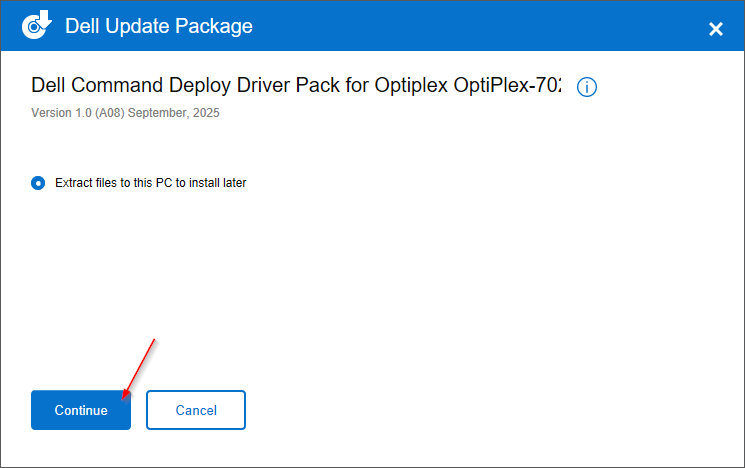
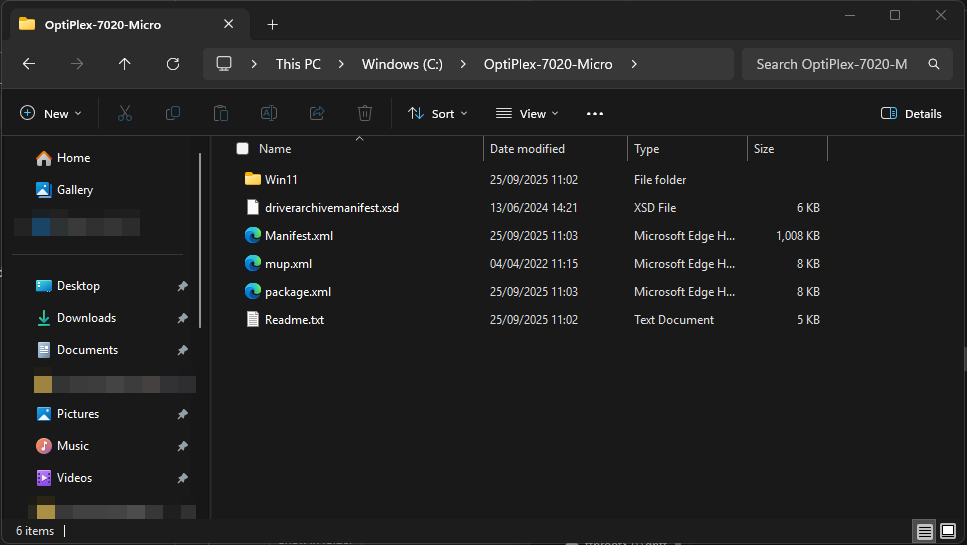
Open a Powershell window, and run the following command. This will create the wim file that we need. It has to be called Drivers.wim
New-WindowsImage -ImagePath 'C:\Drivers.wim' -CapturePath 'C:\Optiplex-7020-Micro' -Name 'Optiplex 7020 Micro'Once has been created, copy it to your app source.
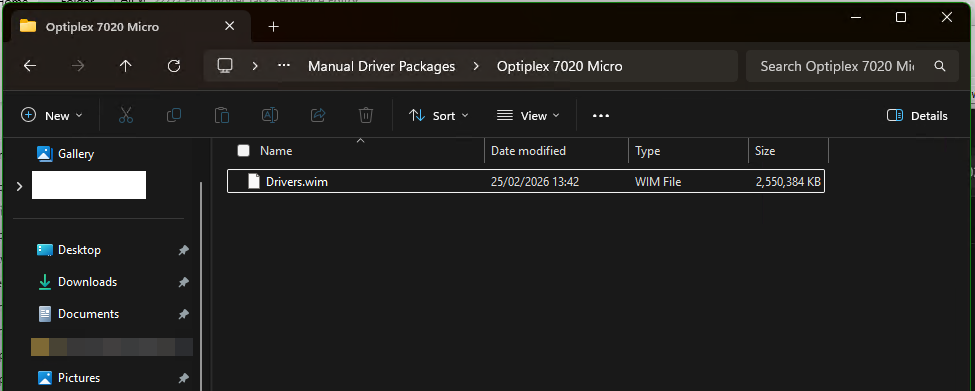
Create a standard package with no program.
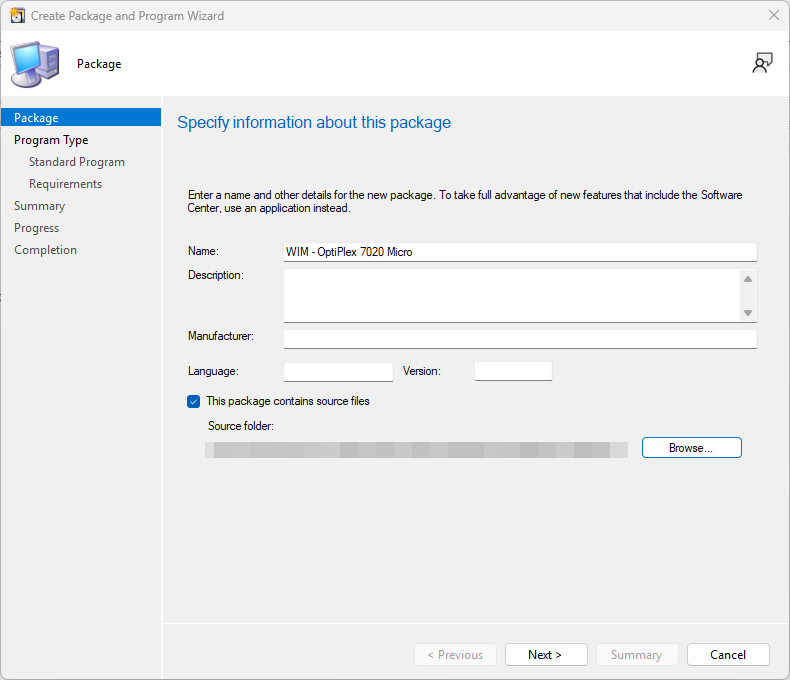
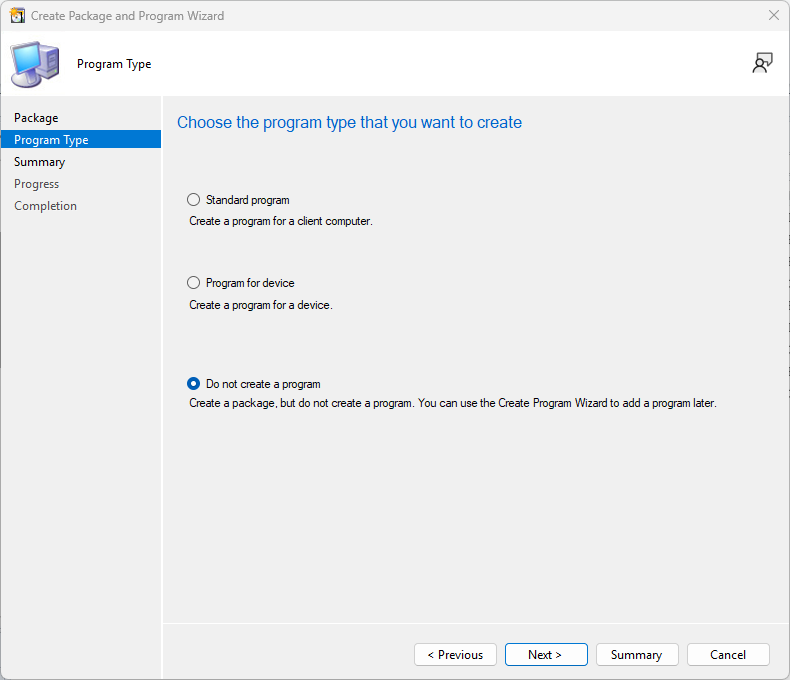
In your task sequence, this needs to be done when the machine is still booted into Windows PE. After the Apply Network Settings Step.
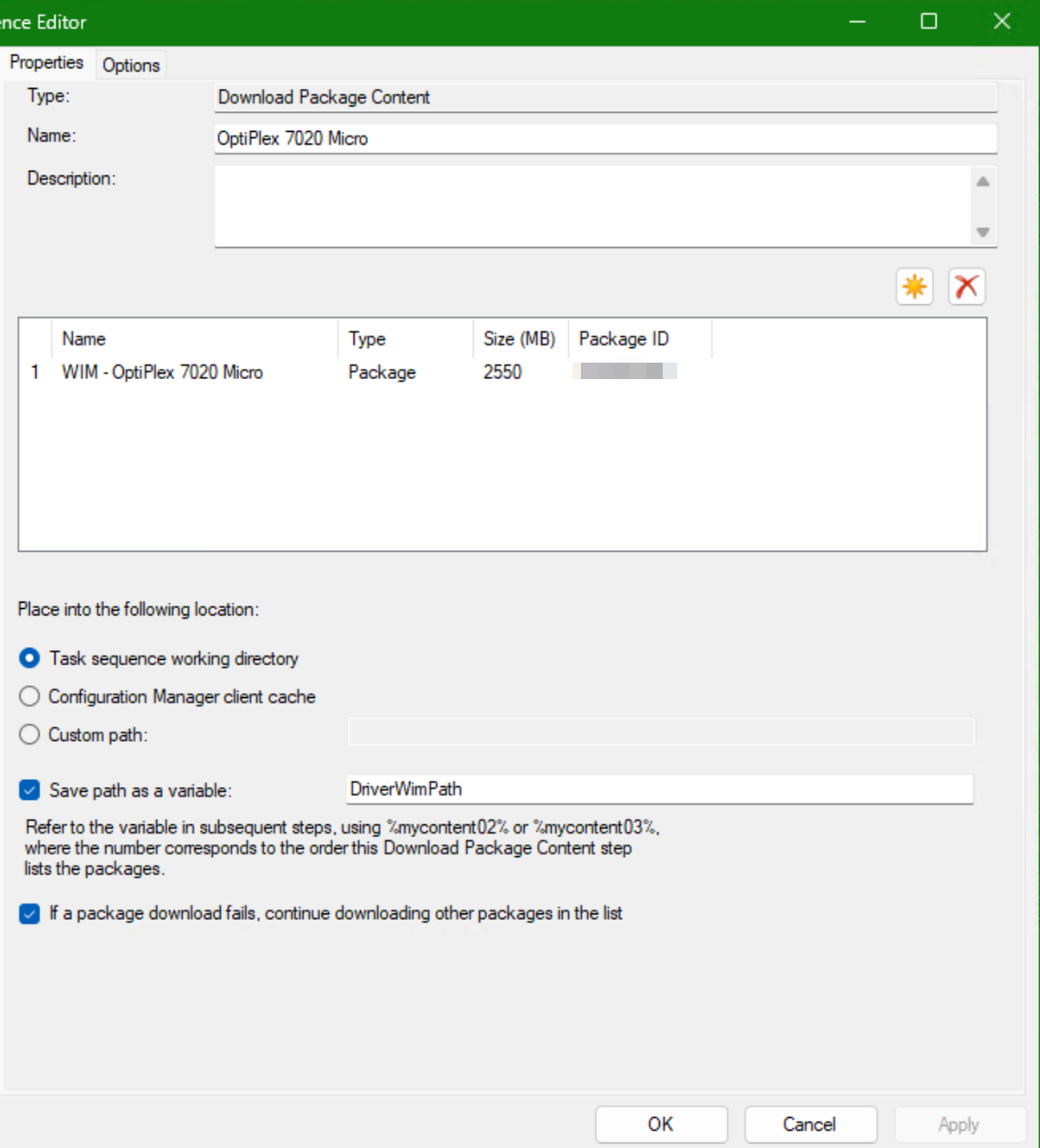
Add a Download Package Content step, and name it after the model you are doing. Then click the yellow star and pick the package that we made earlier. Select Task sequence working directory radio button. And tick Save path as variable and and enter in the box
DriverWimPathSo it should look like this.
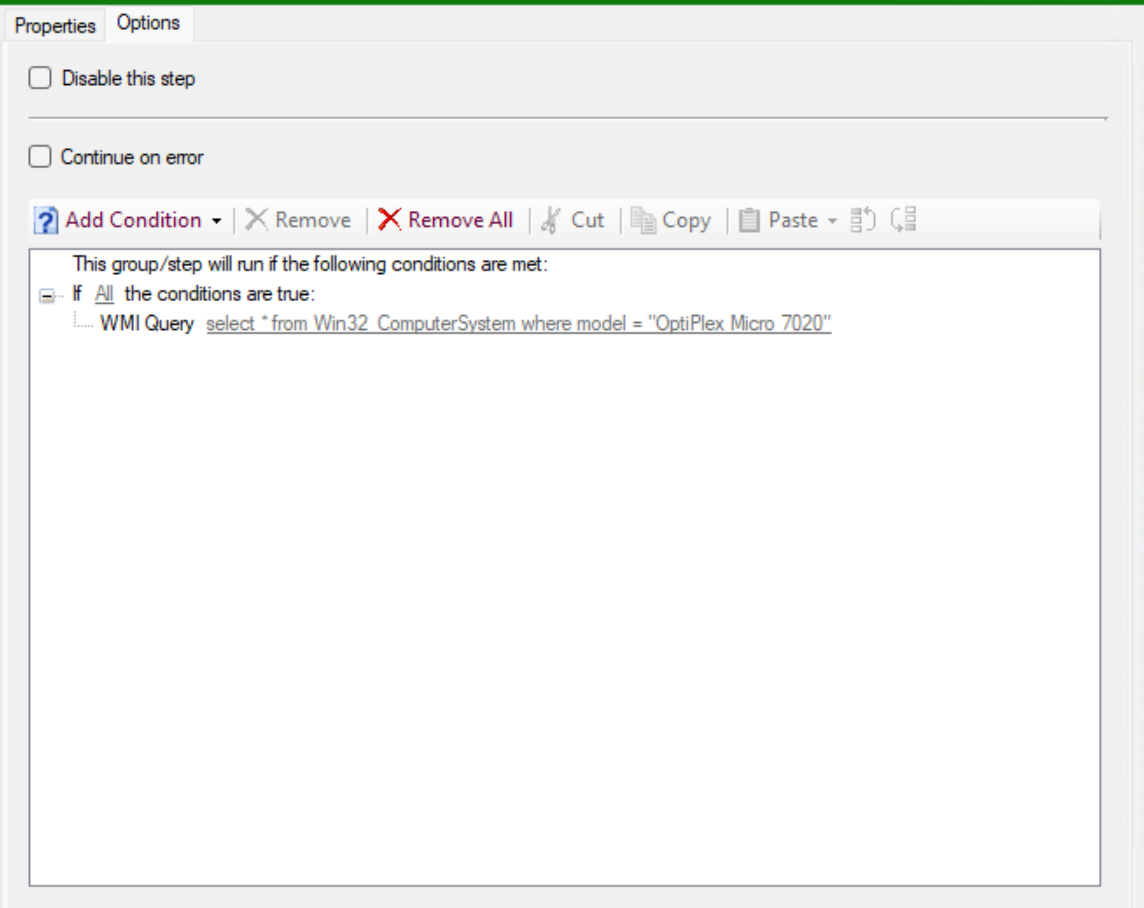
In the options tab, add an if statement and select All conditions then add Query WMI in the WQL Query box add in the following.
select * from Win32_ComputerSystem where model = "OptiPlex Micro 7020"Once all that has been added in, it should look like this.
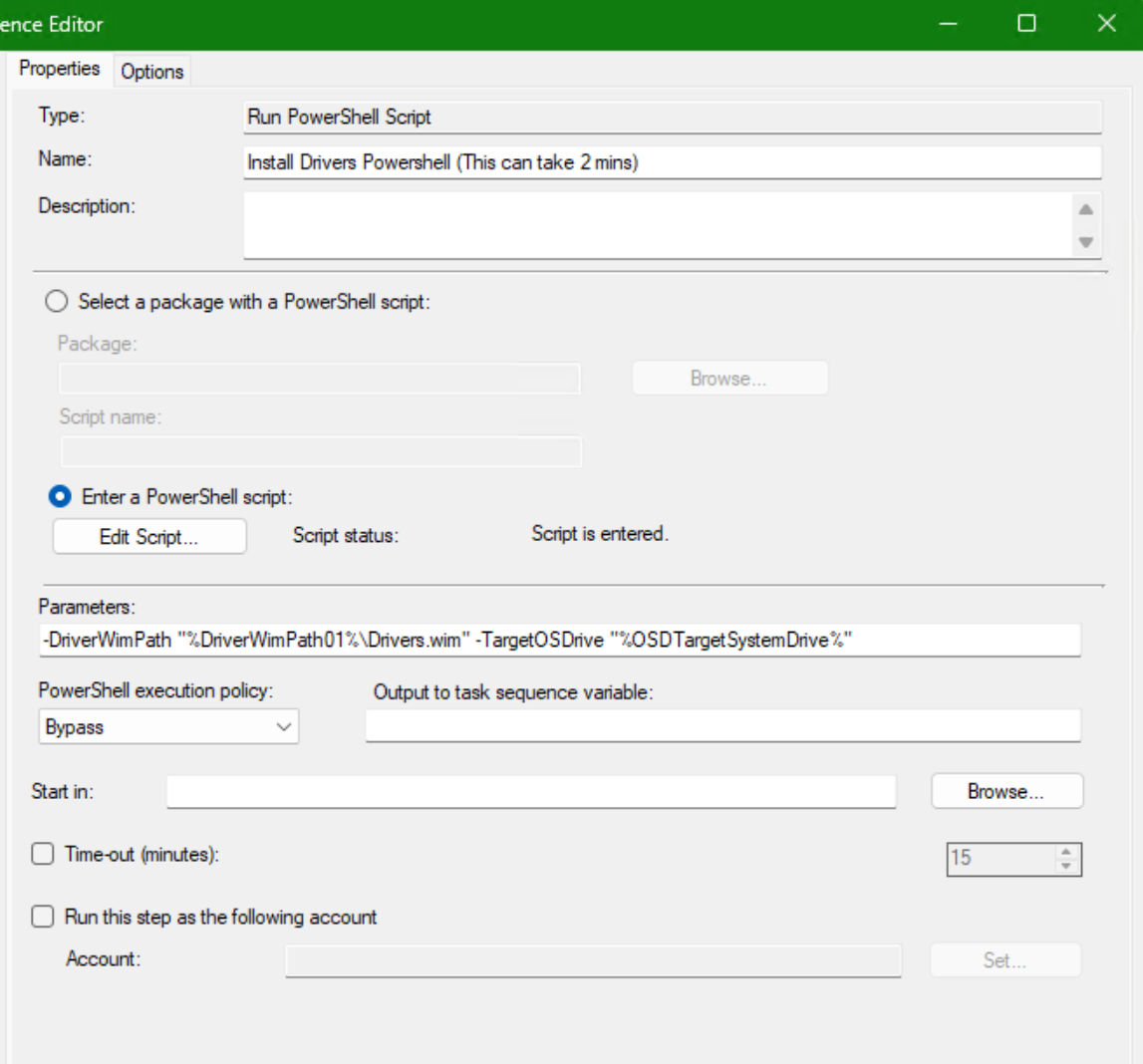
In your task sequence add a run powershell script step, and name it Install Drivers Powershell select the option to enter a powershell script radio button. Then hit edit script and paste in the following
param(
    [Parameter(Mandatory = $true)]
    [string]$DriverWimPath,

    [Parameter(Mandatory = $true)]
    [string]$TargetOSDrive
)

$ErrorActionPreference = 'Stop'

# --- Logging setup ---
$PrimaryLog = 'C:\logging.txt'
$FallbackLog = 'X:\logging.txt'
$LogFile = $PrimaryLog

function Initialize-Log {
    try {
        if (-not (Test-Path $PrimaryLog)) { New-Item -Path $PrimaryLog -ItemType File -Force | Out-Null }
        $script:LogFile = $PrimaryLog
    }
    catch {
        if (-not (Test-Path $FallbackLog)) { New-Item -Path $FallbackLog -ItemType File -Force | Out-Null }
        $script:LogFile = $FallbackLog
        Add-Content -Path $script:LogFile -Value "$(Get-Date -Format 'yyyy-MM-dd HH:mm:ss') [WARN] Falling back to X:\logging.txt. Error: $($_.Exception.Message)"
    }
}

function Write-Log {
    param(
        [Parameter(Mandatory = $true)]
        [string]$Message,

        [ValidateSet('INFO','WARN','ERROR')]
        [string]$Level = 'INFO'
    )
    Add-Content -Path $script:LogFile -Value "$(Get-Date -Format 'yyyy-MM-dd HH:mm:ss') [$Level] $Message"
}

Initialize-Log
Write-Log "=== Driver Injection Script START ==="
Write-Log "Input DriverWimPath: $DriverWimPath"
Write-Log "Input TargetOSDrive: $TargetOSDrive"

$mounted = $false
$mountDir = 'C:\DriverWimMount'
$scratchDir = 'C:\DismScratch'

try {
    Write-Log "Importing DISM module..."
    Import-Module Dism
    Write-Log "DISM module imported successfully."

    # Normalize TargetOSDrive (C: -> C:\)
    if ($TargetOSDrive -notmatch '\\$') { $TargetOSDrive += '\' }
    Write-Log "Normalized TargetOSDrive: $TargetOSDrive"

    # Validate WIM exists
    if (-not (Test-Path $DriverWimPath -PathType Leaf)) {
        throw "Driver WIM not found: $DriverWimPath"
    }

    # Prepare mount + scratch directories on local disk
    New-Item -Path $mountDir -ItemType Directory -Force | Out-Null
    New-Item -Path $scratchDir -ItemType Directory -Force | Out-Null
    Write-Log "Mount directory: $mountDir"
    Write-Log "Scratch directory: $scratchDir"

    # Mount WIM (ReadOnly + Optimize)
    Write-Log "Mounting driver WIM (Index 1) read-only..."
    try {
        Mount-WindowsImage -ImagePath $DriverWimPath -Index 1 -Path $mountDir -ReadOnly -Optimize -ScratchDirectory $scratchDir
        $mounted = $true
        Write-Log "Driver WIM mounted successfully."
    }
    catch {
        # Log full details and rethrow
        $hr = if ($_.Exception.HResult) { '{0:X8}' -f ($_.Exception.HResult -band 0xFFFFFFFF) } else { 'N/A' }
        Write-Log "Mount-WindowsImage failed. Message: $($_.Exception.Message) HResult: $hr" "ERROR"
        throw
    }

    # Confirm there are INF files
    Write-Log "Checking for INF files in mounted WIM..."
    $inf = Get-ChildItem -Path $mountDir -Recurse -Filter *.inf -ErrorAction SilentlyContinue | Select-Object -First 1
    if (-not $inf) { throw "No .inf driver files found inside mounted WIM at: $mountDir" }
    Write-Log "Found INF example: $($inf.FullName)"

    # Inject into offline OS
    Write-Log "Injecting drivers into offline OS at: $TargetOSDrive"
    Add-WindowsDriver -Path $TargetOSDrive -Driver $mountDir -Recurse
    Write-Log "Driver injection completed successfully."  # Add-WindowsDriver is for offline images [3](https://4sysops.com/archives/apply-a-custom-windows-image-using-dism-or-powershell/)

    Write-Log "=== Driver Injection Script SUCCESS ==="
}
catch {
    Write-Log "=== Driver Injection Script FAILED ===" "ERROR"
    Write-Log "Error message: $($_.Exception.Message)" "ERROR"
    Write-Log "StackTrace: $($_.Exception.StackTrace)" "ERROR"
    throw
}
finally {
    if ($mounted) {
        Write-Log "Unmounting driver WIM (Discard)..."
        try {
            Dismount-WindowsImage -Path $mountDir -Discard
            Write-Log "Driver WIM unmounted successfully."  # Dismount only applies to real mount points [1](https://www.reddit.com/r/SCCM/comments/xvxvio/task_sequence_install_drivers_winpe_or_os/)
        }
        catch {
            Write-Log "Failed to unmount driver WIM cleanly: $($_.Exception.Message)" "WARN"
        }
    }
    else {
        Write-Log "Skipping unmount: WIM was never mounted."
    }

    Write-Log "=== Driver Injection Script END ==="
}
Remove-Item -Path "C:\DriverWimMount" -Recurse -Force -ErrorAction SilentlyContinue
Remove-Item -Path "C:\DismScratch" -Recurse -Force -ErrorAction SilentlyContinue
In the Parameters section enter the following
-DriverWimPath "%DriverWimPath01%\Drivers.wim" -TargetOSDrive "%OSDTargetSystemDrive%"Select Bypass on the PowerShell execution policy
Once this is all done it should look something like this.
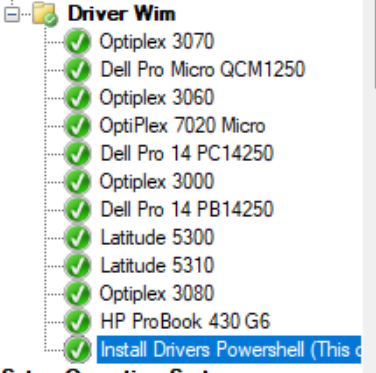
So in your task sequence it should look like this. The powershell script always has to be last.